OBS + MUX [Event Organiser Guide]
OBS is a broadcasting software that can be used to easily stream both live video and audio, but also other images or screens.
As the Event Organiser, you are responsible for configuring the behind the scenes settings to ensure the session will run smoothly during the event. You will need to:
- Create a Live stream in MUX
- Input MUX Stream URL into the Entegy CMS for session
- Share the MUX Details with Session Facilitators and Session Speakers
Create a Live Stream in MUX
MUX converts the Zoom meeting video to the required form for live streaming. A new Live Stream must be created in MUX for every session you wish to have Live Streaming for.
To create a live stream in MUX:
- Login to MUX (If using another platform, the steps must be similar on different platforms)
- Select Live Streams from the left-hand menu bar
- Click on Create New Live Stream
- Copy the below script and paste it into the POST body editor and click Run Request
- {
- "reduced_latency": true,
- "playback_policy": ["public"],
- "new_asset_settings": {
- "playback_policy": ["public"]
- }
- }

Note: This reduces the latency or streaming delay to enhance the real-time experience. It is not required for Live Streaming to function but is recommended for better performance.
- Click on View Live Stream
- Copy the 3 values as shown below from the newly created live stream
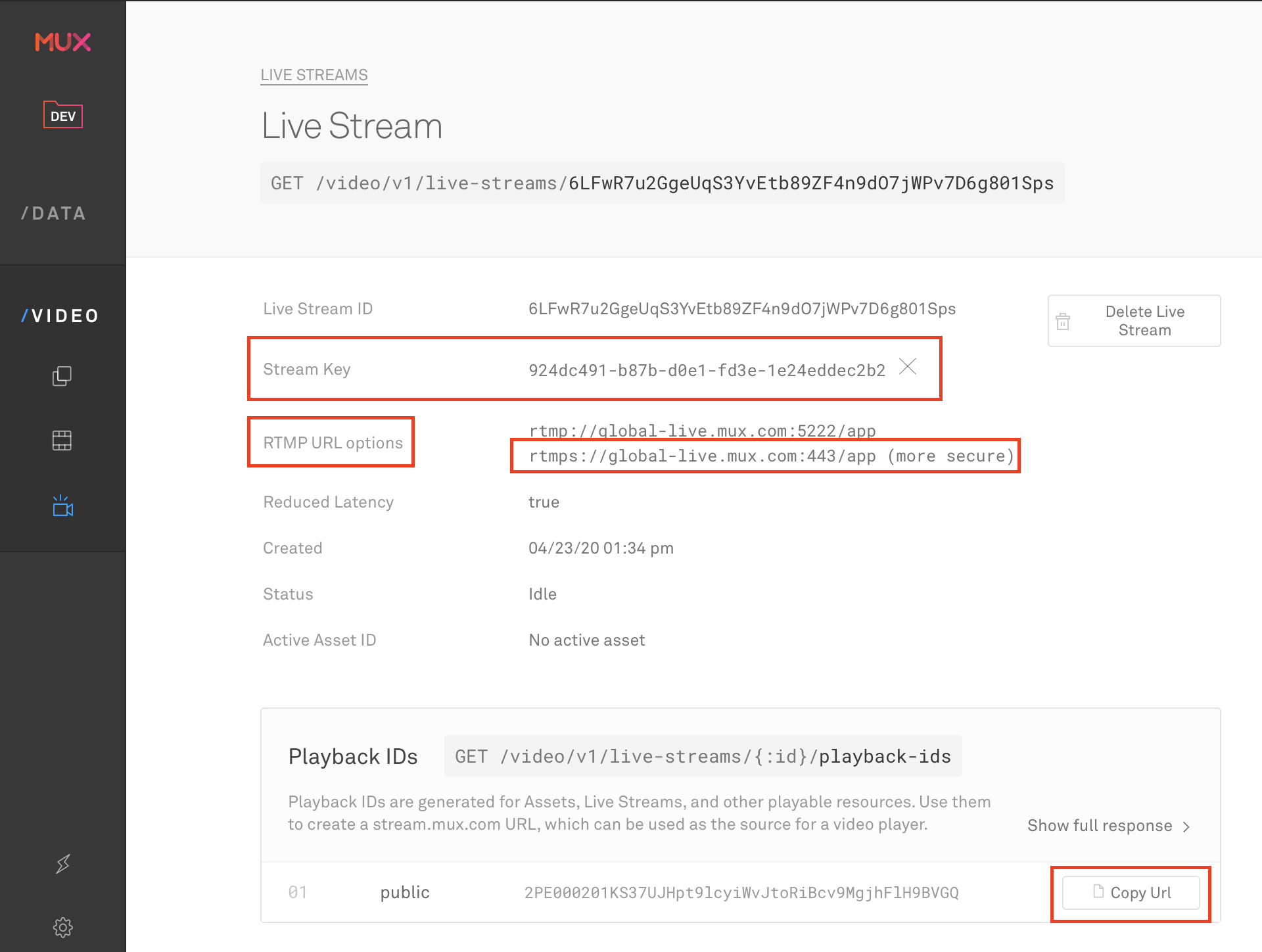
- RTMP URL (Please select the secure URL is available)
- Stream Key
- Playback ID URL
Input MUX Stream URL into the CMS for session
Each session that has Live Streaming, will require the Stream URL added to the session. This will allow the session to display the Live Stream and embed this into the Interactive Sessions interface.

Please note: Each session will have a unique Stream URL from MUX.
To input the Stream URL into the CMS:
- Navigate to Content from the Navigation Menu
- Navigate to the Schedule and relevant session
- Scroll down to Live Streaming Provider Link and input the MUX Playback ID URL
- Click Save
To configure the Session Live Streaming:
- Navigate to Project Configuration > Schedule from the Navigation Menu
- Select the Session Settings tab
- Navigate to How to open streaming links - WebApp Only
- Select Current Window - Stream with Interactive Sessions from the drop-down menu
- Click Save
Share the MUX Details with Session Facilitators and Session Speakers
Once MUX and the CMS have been configured, the final step is to share the Stream Key and Stream URL with the Session Facilitator or Speaker. The Session Facilitator or Speaker will be required to configure OBS and create the various scenes in OBS to run and manage the session.
You must pass on the RTMP URL and Stream Key from MUX.
Please note: Each unique session will require a unique set of credentials from MUX.
Related Articles
MUX for Pre-recorded Video [Event Organiser Guide]
This guide walks you through the steps involved with setting up an Interactive Session with a pre-recorded video embedded for streaming. This could ideally be used to demo an embedded pre-recorded video for presentation. As the Event Organiser, you ...Session Live Streaming Setup Considerations
here are some things to consider when running Session Live Streaming at your event. These considerations include the who will be managing what part of the live streaming software, and the three (3) major components associated with configuring and ...Event App FAQs for Organisers
FAQ: What device operating systems work with my event App or Portal? A: Event App and portals can be used on both iOS and Android devices. Any iOS devices running at least iOS 8.0, and Android devices running at least Android 4.2 Jelly Bean (API 19), ...Setup Session Live Streaming
This guide takes you through the process of setting up Session Live Streaming for your project in the CMS. 1) Create Your Project 2) Configure Live Streaming Configure Distribution Platform (e.g. MUX) Link Distribution Platform to Session Configure ...Introducing Sessions Live Streaming via the Web App
Deliver a captivating virtually-hosted event with more value by enabling software designed to suit your needs. Keep your audience engaged through Interactive Sessions while hosting your event online. Give attendees an opportunity to interact with ...